Document guide
Correct a document photo: crop and adjust perspective
To straighten a document photo, start with the page boundary. Open the perspective tool, inspect the proposed corners and move them onto the flat paper. Choose a page shape only when you know it. This corrects the chosen geometry; it does not restore missing text or flatten a curled book.
Steps
- Start with a readable, complete photo
Keep the original. Include all four paper corners, avoid glare and use a focused photograph. A crop cannot recover a corner outside the image.
- Check the four corners in Edit
Import the photo in the tool below, open Edit and choose Perspective. Treat detected corners as a proposal. Drag each handle to the matching paper corner, keeping the order around the page. A plain Crop trims a rectangle and does not perform the same correction.
- Set the original page shape only if known
If the paper is A4, select A4 and the correct orientation. For another known shape, choose it explicitly. When the original proportions are unknown, leave the unknown option and judge the result carefully; forcing A4 can stretch text.
- Apply, compare and export
Press Done, inspect the page edges and text, then export PNG or PDF. Select Color for unchanged tones or try White document separately for paper cleanup. Reopen the file and compare small numbers, line spacing and margins with the original.
Repeat the four-corner example
Synthetic paper corners
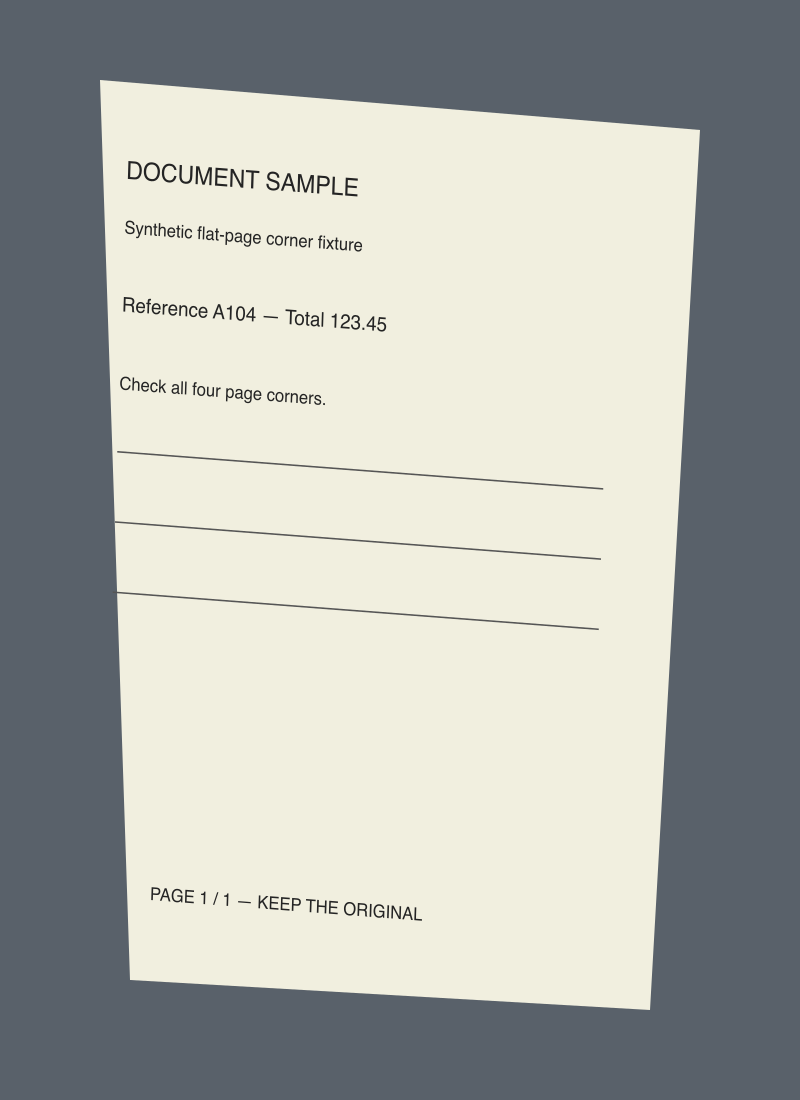
Actual manual-corner export
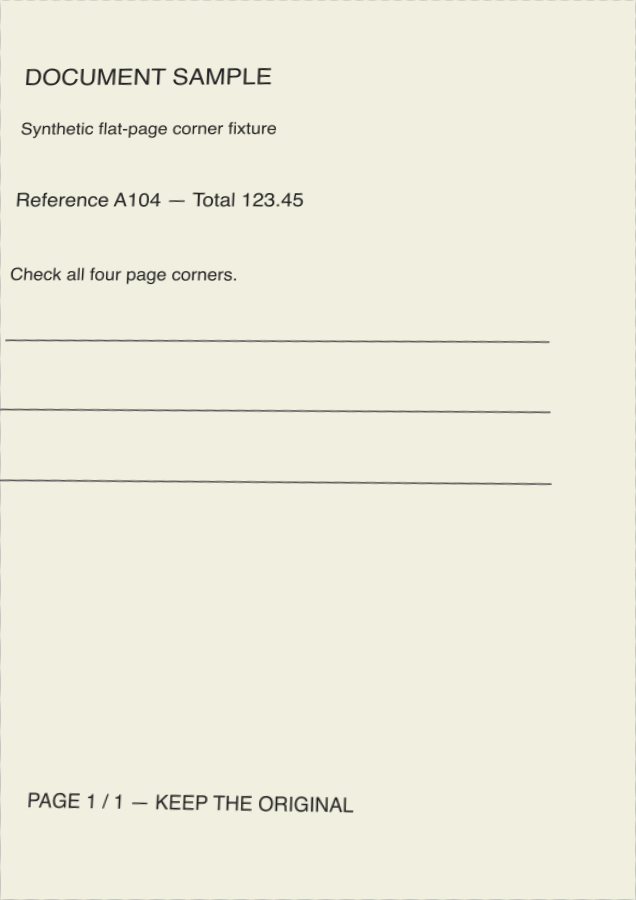
Perspective, rotation and paper cleanup solve different problems
Rotation turns the whole page. Four-corner perspective correction maps a chosen quadrilateral onto a rectangle. White document changes paper and ink contrast. Applying a scanned appearance adds texture instead of correcting these geometry problems.
Download the synthetic corner fixture on this page to repeat the example: choose Color, place the four corners on the paper, select A4, press Done and export PNG with High detail. This sample illustrates the controls and is not a measurement of a real sheet.
A flat-page model has limits
A curled book page has a curved surface, so one four-corner transform cannot straighten every line. Avoid claiming book dewarping or recovered resolution. For a severely blurred, cut-off or curved page, improve the capture first.
Apple describes corner adjustment as part of document capture on iPhone. That is an alternative capture workflow, not a claim that LensUp uses the same algorithm.