Document guide
How to print an ID card front and back on one page (actual size)
To print an ID card front and back on one page, photograph or scan each side, then place both images on a single A4 or Letter sheet in ID-1 slots. LensUp does that layout in the browser; when you print, choose 100% or “Actual size,” not “Fit to page.”
Steps
- Open ID card copy
Open Print an ID card front and back in your browser. No account is required.
- Add the front
Tap “Take photo or choose image/PDF” and add the front. When edges are clear, corners are detected and the card is straightened.
- Add the back
Add the back next. The first image is the front, the second the back. Use “Swap front and back” if the order is wrong.
- Check the corners
If a corner is off, drag it onto the card edge in the editor. For a strong angle, set the original paper ratio to ID-1 or use perspective correction.
- Export or print
Keep layout “ID card.” Pick A4 or Letter to match your paper. Print at 100% / Actual size — turn off Fit to page.
What “front and back on one page” means
Landlords, employers, and upload portals often ask for both sides of an ID on a single sheet. The front alone may omit an address or issue date; separate files are sometimes rejected.
ID-1 slots, defined in ISO/IEC 7810, are 85.60 × 53.98 mm — the size of most credit-card-format IDs and driver’s licenses. That is the frame LensUp uses for the ID card layout.
This guide covers how to make the copy. Whether a photocopy is accepted is up to the organization that asked for it.
Treat ID copies carefully: Only copy identity documents for purposes you are authorized to use them for. A watermark with the recipient and date reduces casual reuse when the organization allows it. Wipe downloads from shared computers after you send.
Photographing both sides with a phone
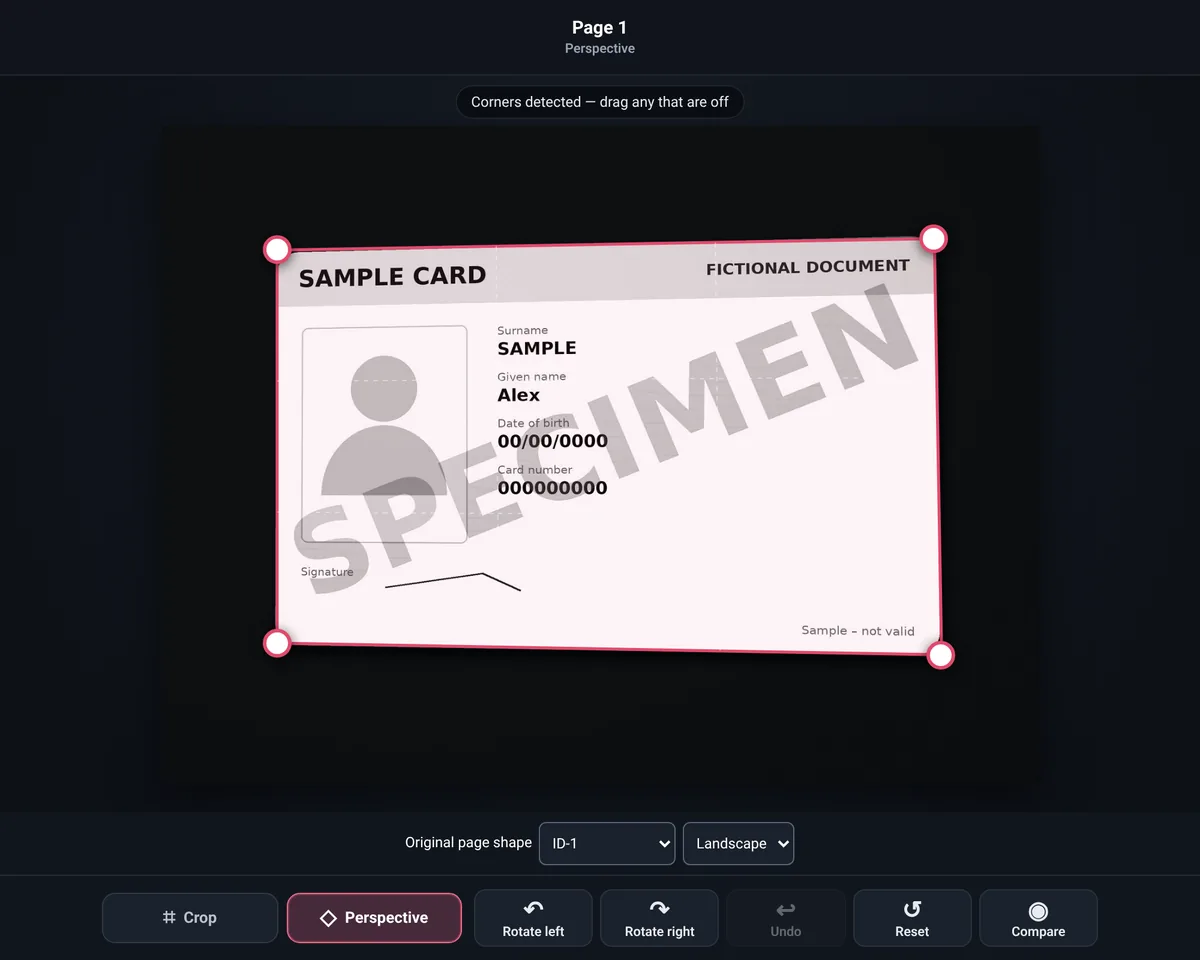
Lay the card on a dark matte surface near a window. Skip the flash — holograms and the portrait glare easily. Hold the phone parallel above the card until all four corners are in frame.
Shoot the front, flip the card in place, shoot the back. If the shot is skewed, fix the corners in the editor or straighten first with perspective correction.
Before you submit, zoom until you can read the ID number, dates, and the portrait without glare. One clipped corner is enough for a rejection on many portals.
Layout and export in LensUp
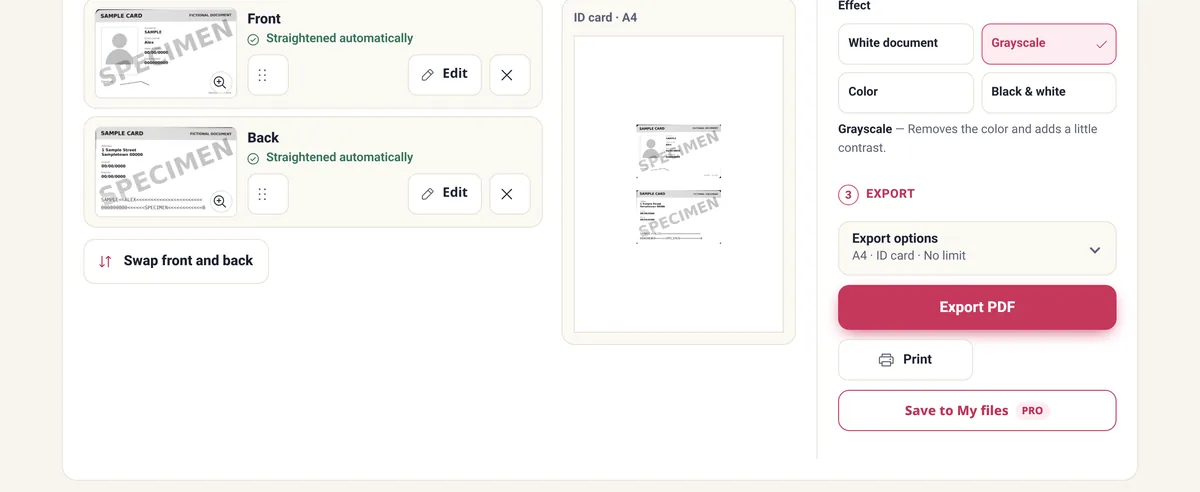
In ID card copy, image one is the front and image two the back. The default effect is grayscale, like a photocopier. Switch to Color only when color is required.
Corners auto-detect when edges are clear; otherwise drag the handles. Always check the result — detection helps but is not perfect.
A watermark option can add purpose and date. Skip it if the recipient wants a clean copy. If the file is heavy, compress the PDF toward 200 KB or 1 MB afterward.
If the form only wants the front, use the regular scanner instead of the ID layout, and export a clean single-page PDF rather than a screenshot crop.
Printing at actual size
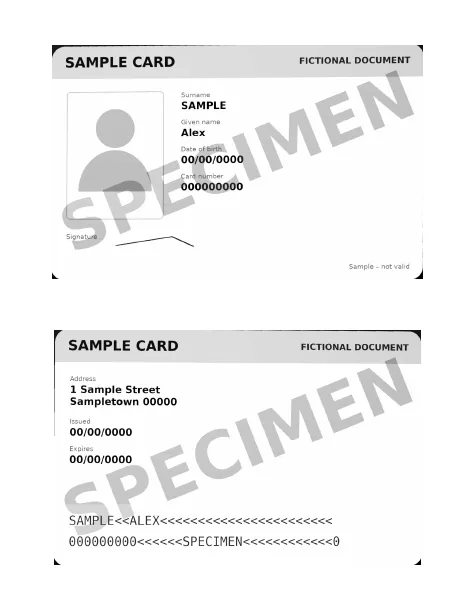
In the print dialog choose Actual size or 100%. Fit to page shrinks the card. Match the paper size to A4 or Letter. Print single-sided: “front and back” means both card faces on one side of the sheet, not duplex.
An upside-down card can export undersized — rotate it first. Cropped card photos hit real size more reliably; on photos with margins, snap corners to the card edge before export.
Using a copier or flatbed
Many multifunction printers offer an ID-card copy mode: scan front, flip, scan back, print one sheet. Without that mode, scan each side and drop the images into LensUp in order.
Common mistakes
Cropped corners, flash glare, swapped sides, or Fit-to-page printing cause most rejections. Zoom the PDF and check the face and fine print before you send.
If the form has separate front and back fields, upload two files — not the combined sheet.
Frequently asked questions
How do I print an ID card front and back on one page?
Photograph or scan both sides, add them in LensUp’s ID card copy tool, and export an A4 or Letter PDF with the ID card layout.
How do I keep actual size when printing?
Choose Actual size or 100% in the print dialog. Turn off Fit to page.
Are corners detected automatically?
Yes when edges are clear. Otherwise drag each corner onto the card edge.
Does the copy need to be in color?
Only if the recipient asks for color. The default is grayscale.
Are my ID photos uploaded?
No. Cropping, layout, and export run in your browser on your device.
Have your ID ready? Build a front-and-back copy on one page — free, no sign-up.
Copy ID front and back