Document guide
How to scan a document on iPhone and save it as a PDF
To scan a document on iPhone and save it as a PDF, open Notes, choose Scan Documents, capture each page, and save. You can also open LensUp’s scanner in Safari to crop, apply a scan effect, and export a multi-page PDF without installing an app.
Steps
- Prep the page
Lay the sheet flat on a dark surface in even daylight. Remove clips and folds.
- Open a scanner
In Notes: tap the attachment or camera control, then Scan Documents. Or open Scan to PDF in Safari.
- Capture the page
Hold the iPhone parallel above the center until edges are in frame. Notes can auto-capture; otherwise take the shot and adjust corners.
- Pick a look
Keep Color for stamps and photos; White document or Grayscale for text-only pages.
- Save as PDF
Add more pages, check order, then save. In LensUp, export as PDF on A4 or Letter.
Light and framing before you scan
Soft window light beats overhead lamps that cast the phone’s shadow. Avoid flash on glossy paper. A dark background makes page edges easier to detect.
Fill most of the screen with the page so small type stays sharp. If a shadow band remains, step so your body is on the opposite side of the light, or clean it later with shadow removal.
A scanned PDF is meant to be read as pages, not necessarily searched as text. Add OCR later only if the recipient asks for selectable text.
Built-in method: Notes on iPhone
Apple’s support guide: open Notes, tap the attachment/camera control in a note, then Scan Documents. Keep the phone steady for automatic capture when boundaries are detected, or capture manually, adjust corners, and tap Keep.
Scan more pages, then Done — the document is saved as a PDF in the note. Share it or save it to Files. Menu labels can vary slightly by iOS version.
Name files by content and date, such as lease-signed-2026-10.pdf, so you can find the scan when someone asks for a resend.
Browser method: LensUp in Safari
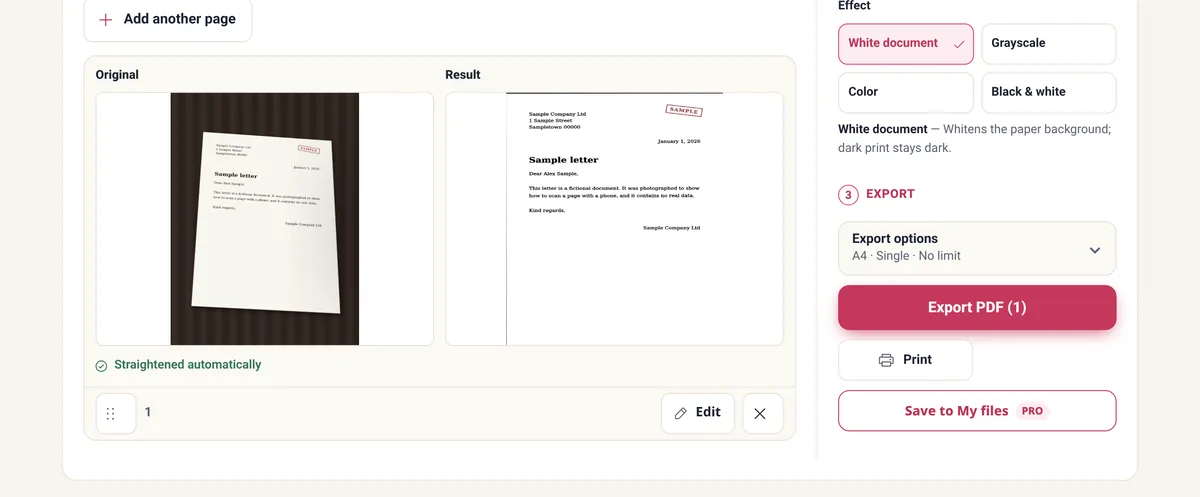
When you want paper size control, a size target later, or photos you already took, use Scan pictures and documents to PDF. Processing stays on the device; nothing is uploaded.
Phone scanners struggle with thick books and curved spines; loose sheets are the sweet spot. Retake any page where a line of text is soft.
Fixing a skewed or shadowed page
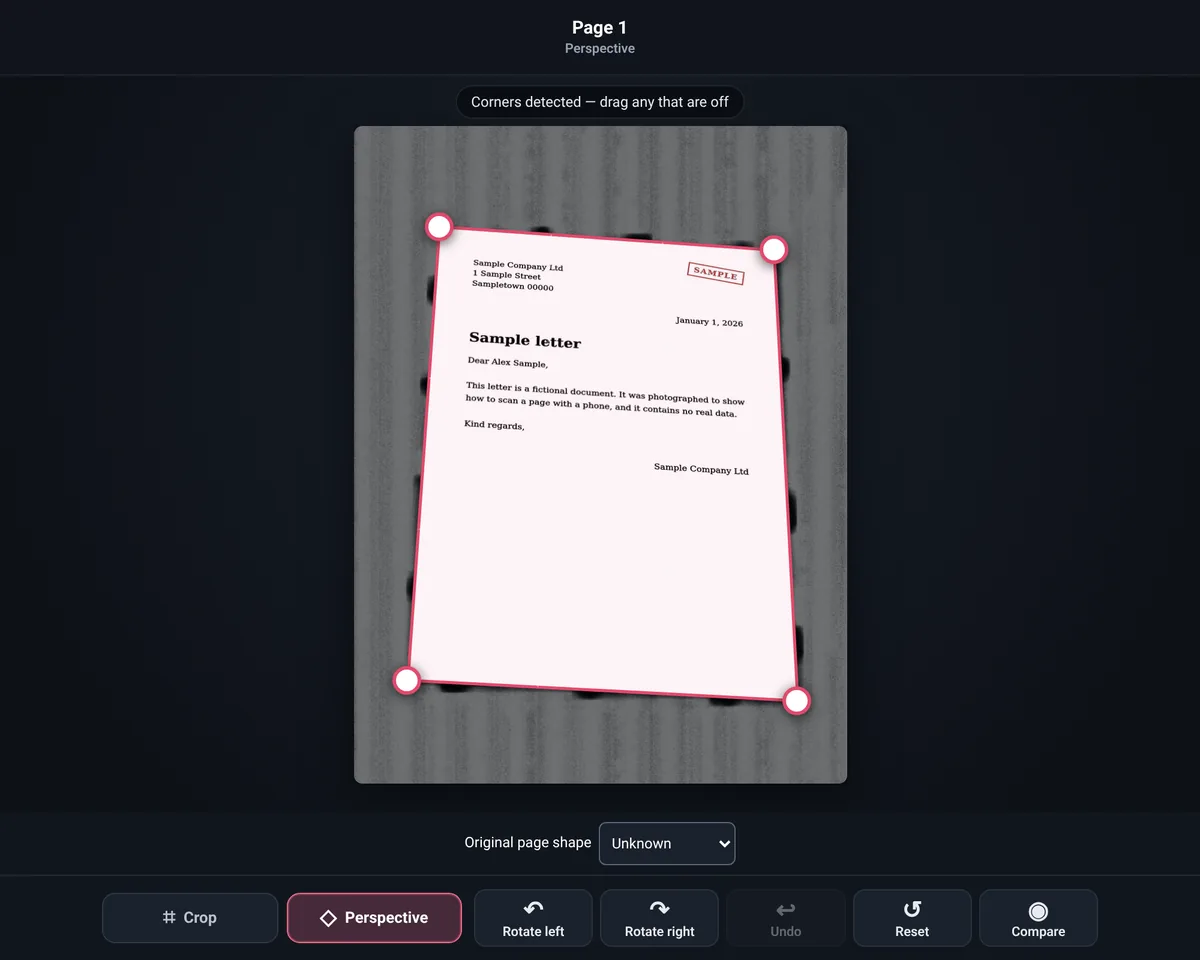
A trapezoid photo becomes a flat rectangle with perspective correction. Soft phone shadows even out with remove shadow, which keeps colored ink.
If email or a portal rejects the file, compress toward a size limit. Pages become images, so text is no longer selectable — fine for most scanned submissions.
Notes vs browser
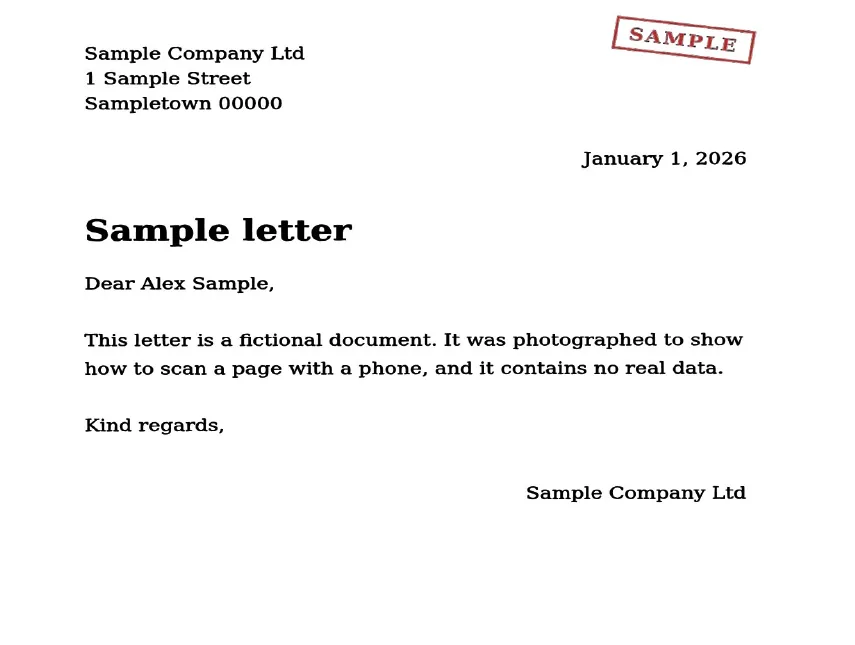
Notes is fastest for everyday iPhone scanning and keeps the PDF in the note. The browser scanner helps when you need Letter/A4 choices, batch photos already on the phone, or local-only processing without iCloud sync concerns.
Either way, zoom the result, check edges, and use a clear filename before you send.
Frequently asked questions
How do I scan a document on iPhone to PDF?
Use Notes → Scan Documents, or open LensUp’s scanner in Safari, capture pages, and export a PDF.
Can I scan without installing an app?
Yes. Notes is built in, and LensUp runs in Safari.
Can I combine multiple pages?
Yes. Capture pages in one session, reorder if needed, then save.
Will the PDF text be selectable?
Not with LensUp — pages are images. Use OCR if you need searchable text.
Are files uploaded?
Not with LensUp. Notes may sync via iCloud depending on your settings.
Turn phone photos of paper into a clean PDF — free in your browser.
Scan to PDF