Document guide
How to remove shadows from a photo of a document
To remove shadows from a document photo, open a tool with a De-shadow effect, add the picture, and compare the even page with the original. LensUp levels background lighting in the browser while keeping colored ink and stamps; hard shadow edges on dense print may still leave a faint seam.
Steps
- Open Remove shadow
- Add the photo
Take or choose the document photo (or a PDF page). Corners straighten when edges are clear.
- Keep De-shadow selected
De-shadow is preselected: it evens uneven light and keeps colored ink. Picking another effect turns it off — tap De-shadow again to restore it.
- Compare with Color
Switch to Color briefly to see the raw lighting, then return to De-shadow.
- Export
Export a PDF or image. Straighten corners first if the page is skewed.
Where phone-scan shadows come from
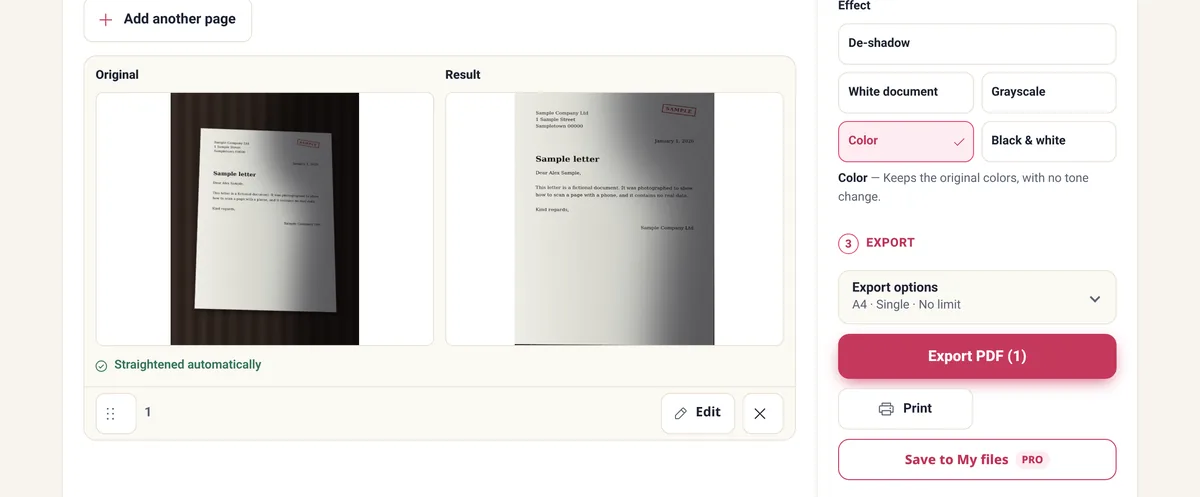
Light from one window or lamp hits the desk while your hand and phone sit between the source and the paper. The camera records a soft dark band or a gradient — the shadow is uneven illumination, not dirt on the page.
Because the underlying paper is mostly uniform white, that unevenness can be estimated and leveled. That is what De-shadow does; it is not a general photo relighting tool for people or outdoor scenes.
De-shadow pairs well with White document when you want paper that looks freshly scanned; compare both on a page with blue ink so you do not bleach stamps.
How De-shadow behaves
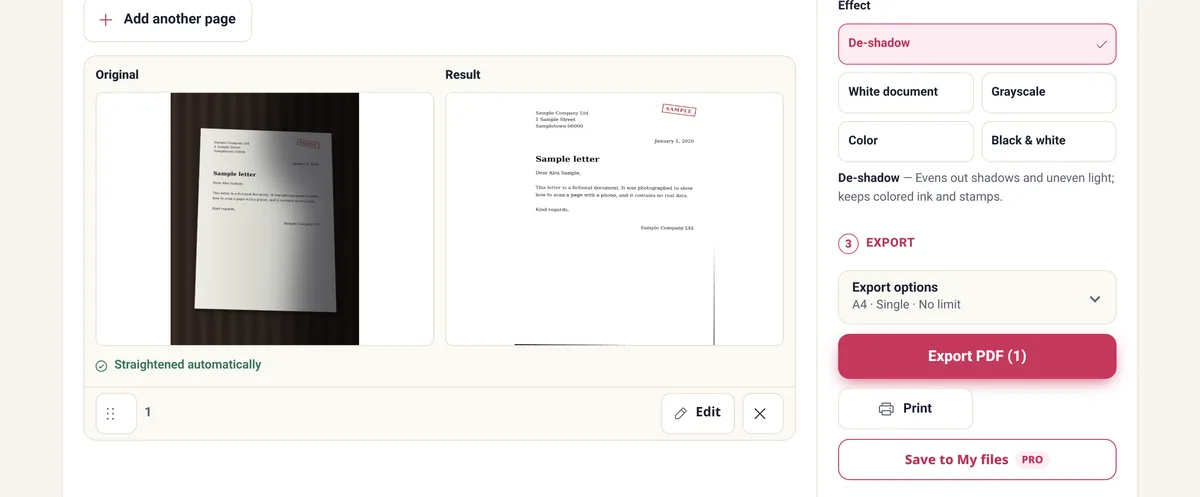
The effect lifts dim regions toward the same white as the rest of the sheet while dark print keeps contrast. Soft, wide shadows usually disappear; warm indoor casts often improve at the same time.
A hard shadow edge that cuts through dense print can leave a faint seam. A frame shot in a dark room may be mostly noise — no filter restores detail that was never captured. Retake near a window when letters are already unreadable.
If a faint seam remains after De-shadow, a slightly different crop or a retake with the light in front of you usually beats pushing the filter harder.
Avoiding shadows when you shoot
Put the light in front of you and the page, not behind you. Shoot from directly above so the phone’s shadow does not stretch across the sheet. One broad daylight source beats two harsh lamps.
For a stack of pages, lock your stance and framing once so every sheet matches. Clean capture still beats any filter.
Export at the paper size your recipient expects, then compress only if a size cap appears in the upload rules.
Related cleanups
If the page is skewed as well as shadowed, straighten with perspective correction or the scanner’s corner editor, then apply De-shadow. To build a multi-page PDF, use Scan to PDF with De-shadow on each page.
Cleaning an existing scan file (different job from a phone photo) is covered in Clean a scanned PDF. Link there when the source is already a PDF scan rather than a fresh photo.
Adobe describes the same kind of fix in Acrobat’s Enhance camera image feature, which targets poor lighting, shadows, skewed angles, and background areas in phone photos of documents. If the photo needs four exact corners and a known page shape rather than lighting, see Correct a document photo.
Export and size
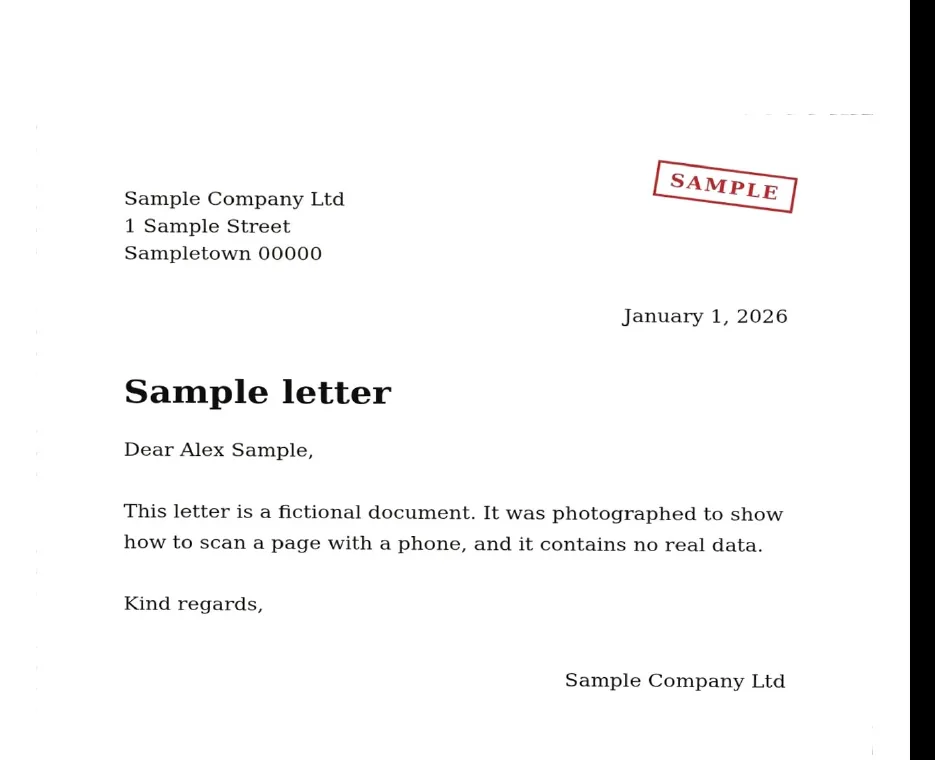
Export to A4 or Letter when you will print or upload. If the portal has a size cap, compress afterward. Processing never uploads the photo — it stays on your device.
Frequently asked questions
Can I remove a gray band from a photographed document?
De-shadow levels gradual lighting so broad shadows fade. A dark spot on a letter may remain — compare fine text with the original.
Will it wash out the text?
It flattens background lighting while keeping dark text; compare against Color or the original before export.
Does it work in color?
Yes. Lighting is corrected per channel so colored ink and stamps stay.
Is this the same as cleaning a scanned PDF?
Related but different. This page targets phone photos; see the clean-scanned-PDF guide for existing scan files.
Are photos uploaded?
No. Correction runs in your browser.
Even out the light on a document photo and keep the ink — free, on your device.
Remove shadow